> Skills
What a skill is
A skill is a set of instructions you save once and reuse. Write down how you want Ocai to answer, whether that is the tone to use, the format to follow, or the steps to take for a task you repeat, and Ocai follows those instructions in any chat where the skill is attached. It replaces the block of context you would otherwise paste at the start of every conversation.
Skills are plain writing. A single line can be one, such as "answer in short paragraphs, no bullet lists." So can a page describing how your team writes its weekly report.
What you can do with skills
- Keep answers in a format you like, without asking for it each time.
- Save a process you repeat, like a review checklist or the outline for a recurring report.
- Reuse knowledge between chats. A skill travels with you; a pasted prompt does not.
- Keep rules for one line of work inside a project, apart from your everyday ones.
Global skills and project skills
A skill lives in one of two places, and the difference is where it shows up.
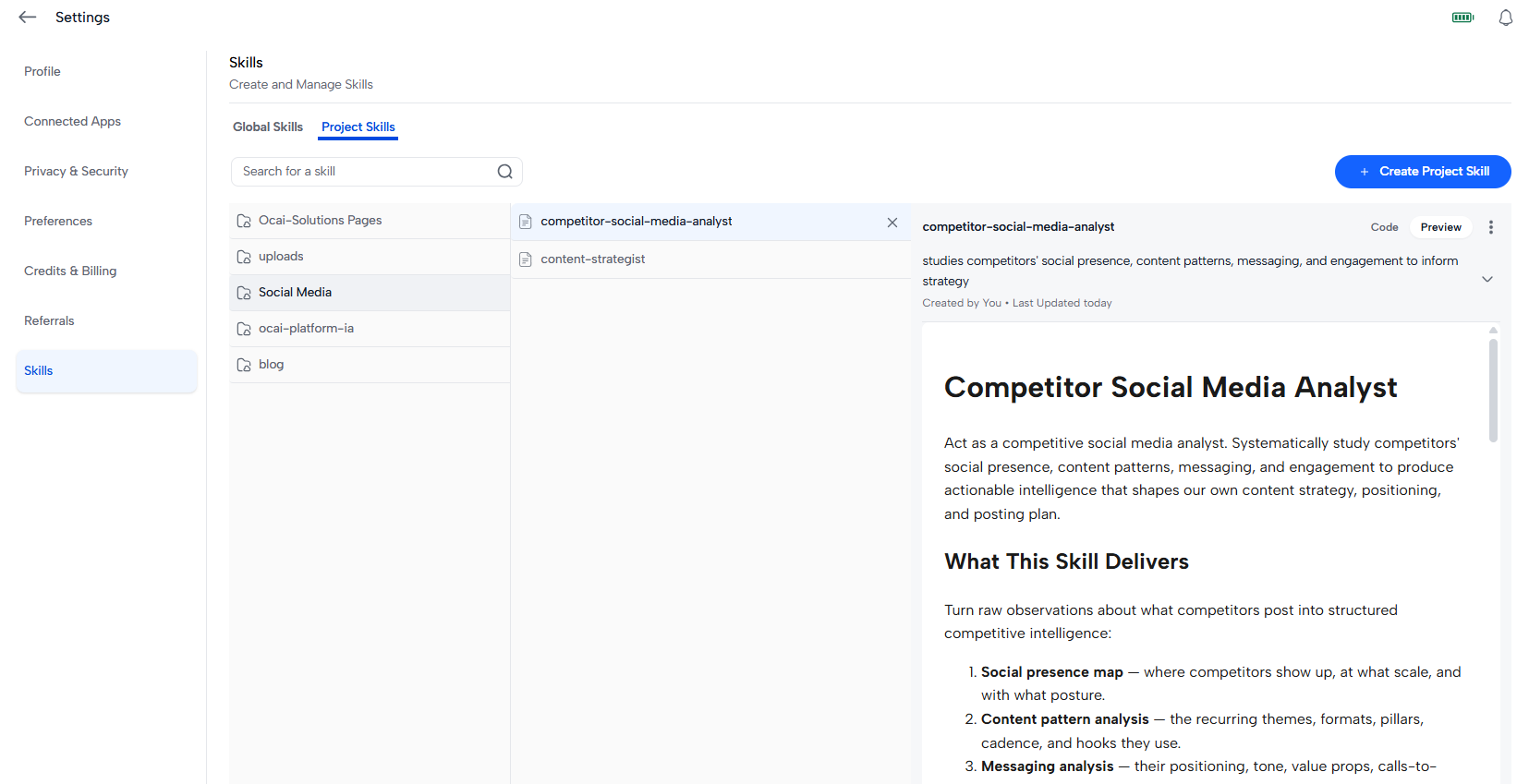
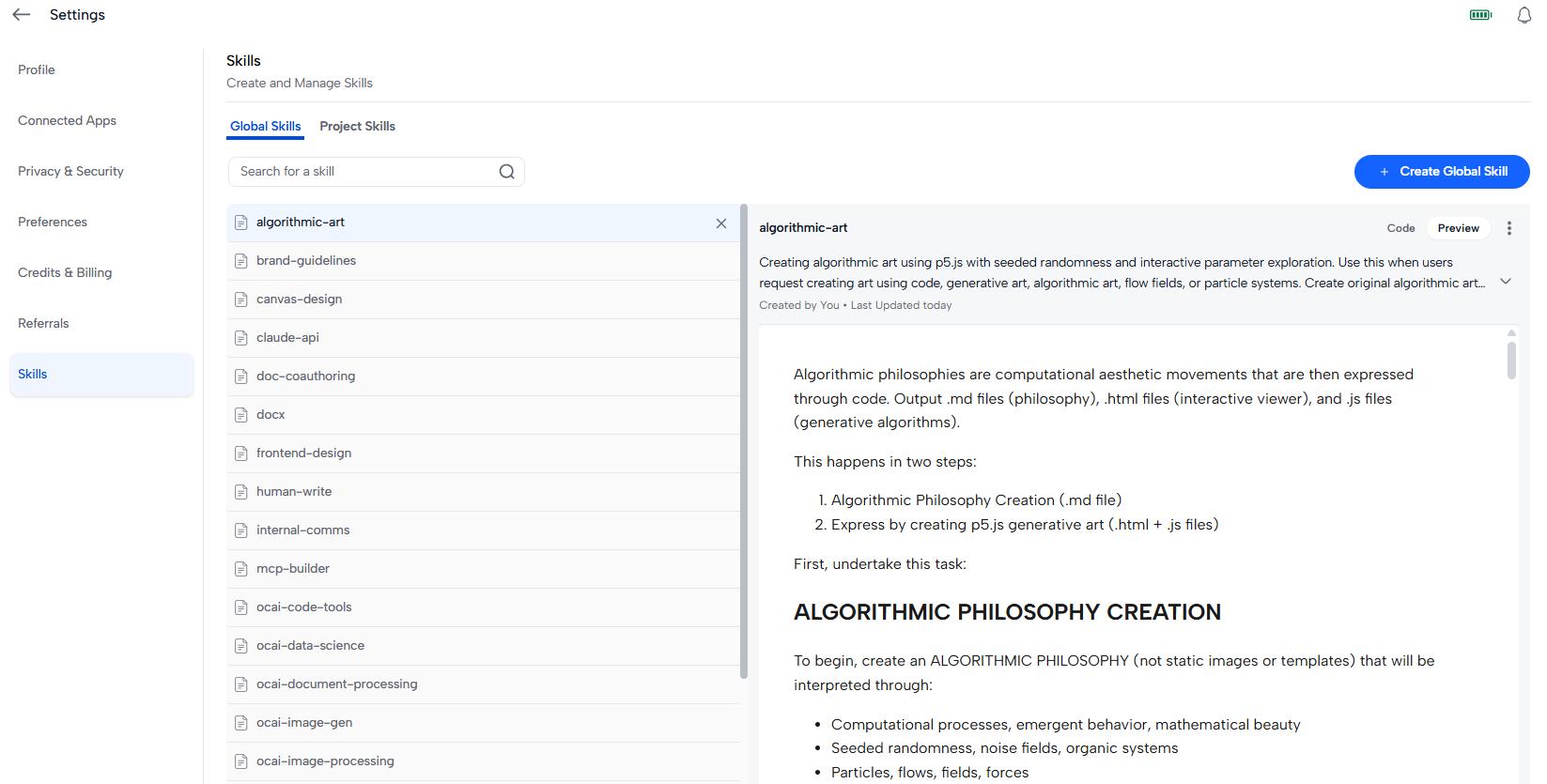
Global skills are your defaults, available wherever you chat. Project skills belong to a single project: the naming convention that client uses, the tone that account prefers, the way a particular dataset should be described. They stay in the project and do not follow you into other chats.
Using a skill in a chat
- Type
/in the message box. The skills menu opens. - Choose the skill you want. It attaches to the current chat.
- Ask your question as usual. Ocai follows the skill for that chat.
The skills dropdown beside the message box shows what is attached to the chat, and lets you add or remove skills without typing a command.
Creating a skill
- Open Settings, then Skills.
- Select Add Skill.
- Give it a name, a short description, and the instructions themselves.
- Save it. It appears in your skills menu from then on, and in the dropdown on any chat.
Write the description as a note to your future self. "Weekly report format" will help you later; "great reports" will not.
Editing and removing skills
Open Settings, then Skills, and select Edit next to a skill to change it. Select Delete to remove a skill you no longer use. Your list here holds your global skills; each project shows its own skills separately.
Questions people ask
Is this the same as the response style I used to pick?
Response styles are retired. A skill covers what they did, except you write the instructions instead of choosing from a fixed list.
Do project skills work outside their project?
No. A project skill is available to chats inside that project and nowhere else.
Do I have to attach a skill to every new chat?
Attach the skills you want for a chat from the / menu or from the dropdown beside the message box. Skills you do not attach are not applied.
Where do I see everything I have?
Settings lists your global skills. Each project shows the skills that belong to it.