> Using / and @ shortcuts
Power Commands: Control Everything from the Chat Bar
You don't need to click around menus to change how OpenCraft AI works. With two simple keystrokes, / and @, you can manage your files and switch intelligence modes without ever taking your hands off the keyboard.
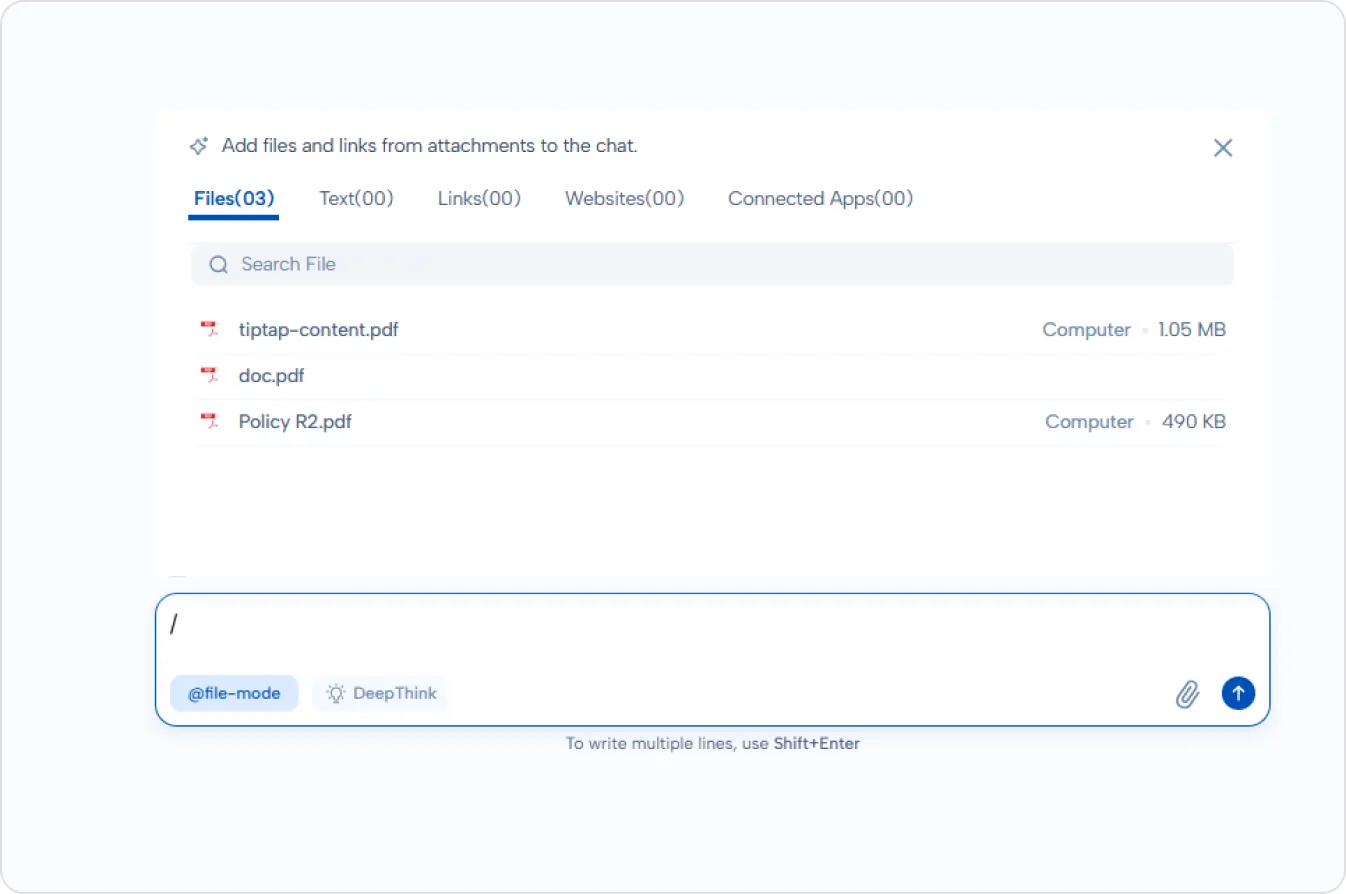
The "/" Command: Instant File Access
Think of the forward slash (/) as your quick-reference tool. Instead of manually searching for an attachment, simply type / in the chat box.
This instantly opens a menu of all your currently uploaded files. From there, you can select a specific document to "focus" the AI's attention on it. This is the fastest way to tell the AI, "Look at this specific report and answer my question."
The "@" Command: Mode Switching
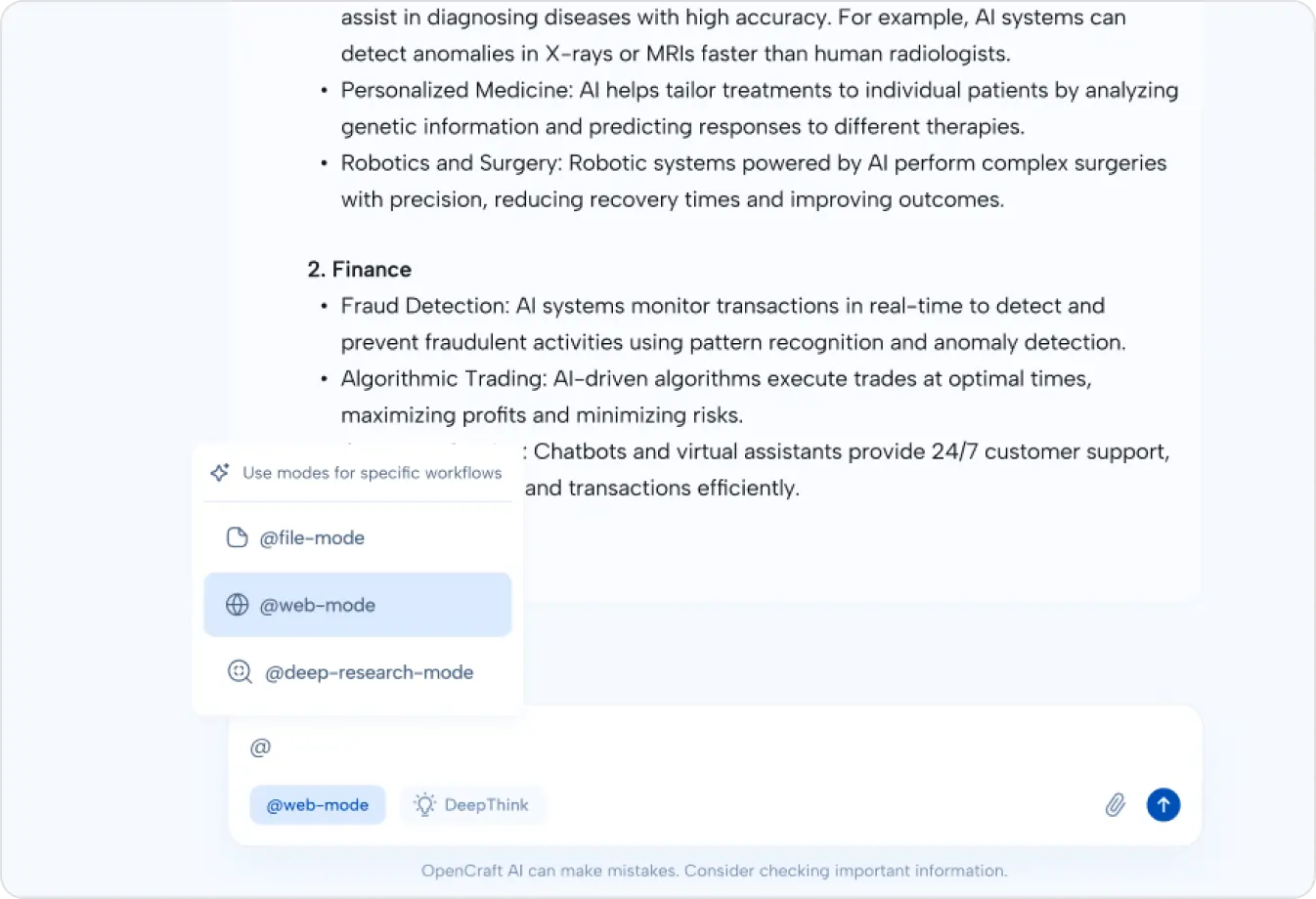
The at symbol (@) is your gateway to different AI capabilities. Typing it allows you to change the "brain" of the AI mid-conversation to suit your current task:
- @Assistant: Perfect for when you need real-time facts, news, or data from the live internet.
- @File Assistant: Locks the AI's focus exclusively on your documents for precise analysis.
- @Deep Dive: Activates advanced reasoning for complex, multi-step logical problems.
- @Deep Research: Conducts exhaustive, academic-grade investigations across multiple sources.
By mastering these two keys, you can keep your flow uninterrupted and navigate the platform's features with speed and precision.