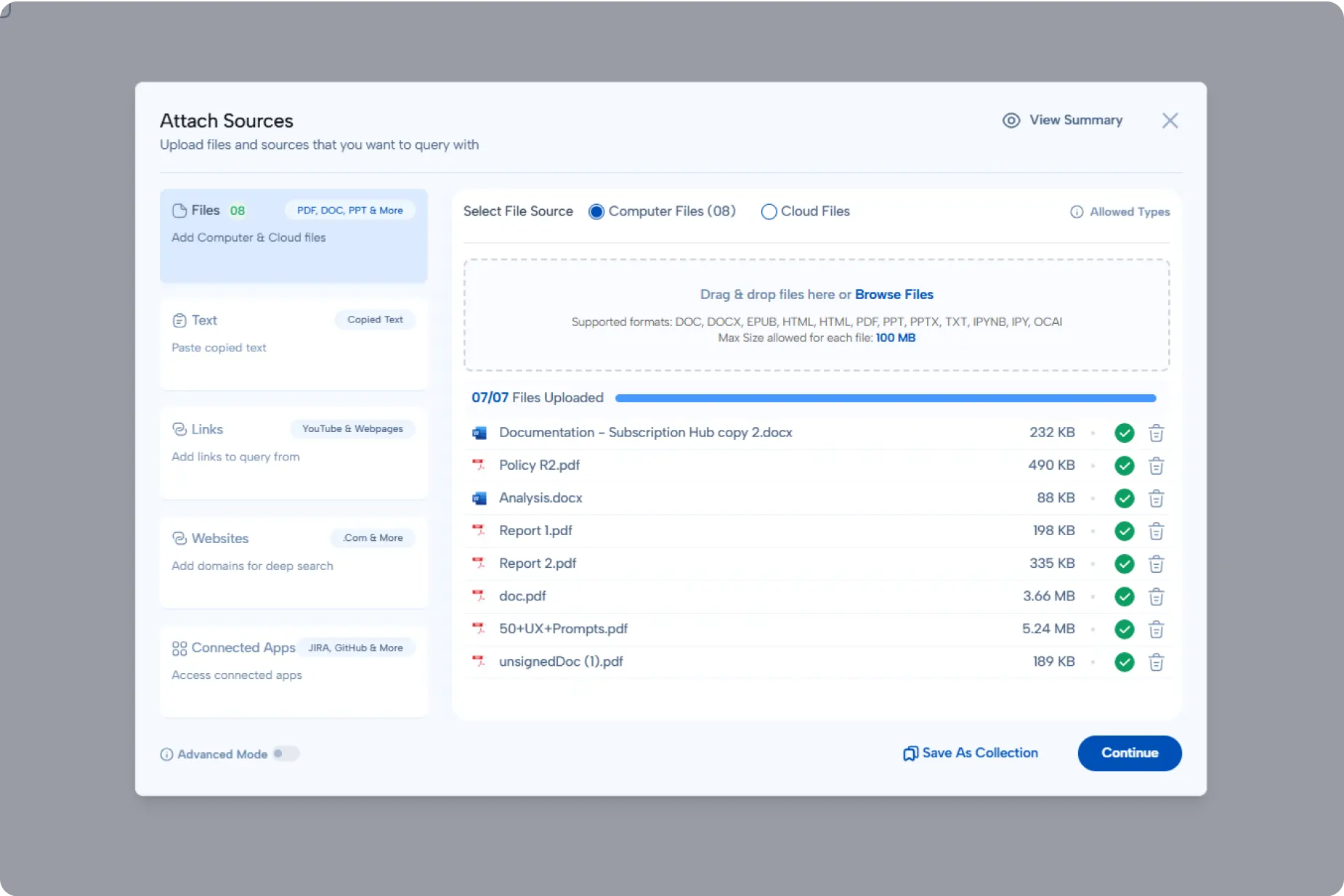
> Attach Computer Files
Overview
The Attach Sources feature acts as the bridge between your local data and OpenCraft AI's intelligence. It allows you to efficiently manage AI documents and reference materials in one place. Whether you need to upload local files, paste text, attach links, or connect external apps, this tool ensures your AI Copilot has immediate access to the source documents it needs to give you accurate answers.
How to Attach Computer Files
1. Accessing the Attachment Options
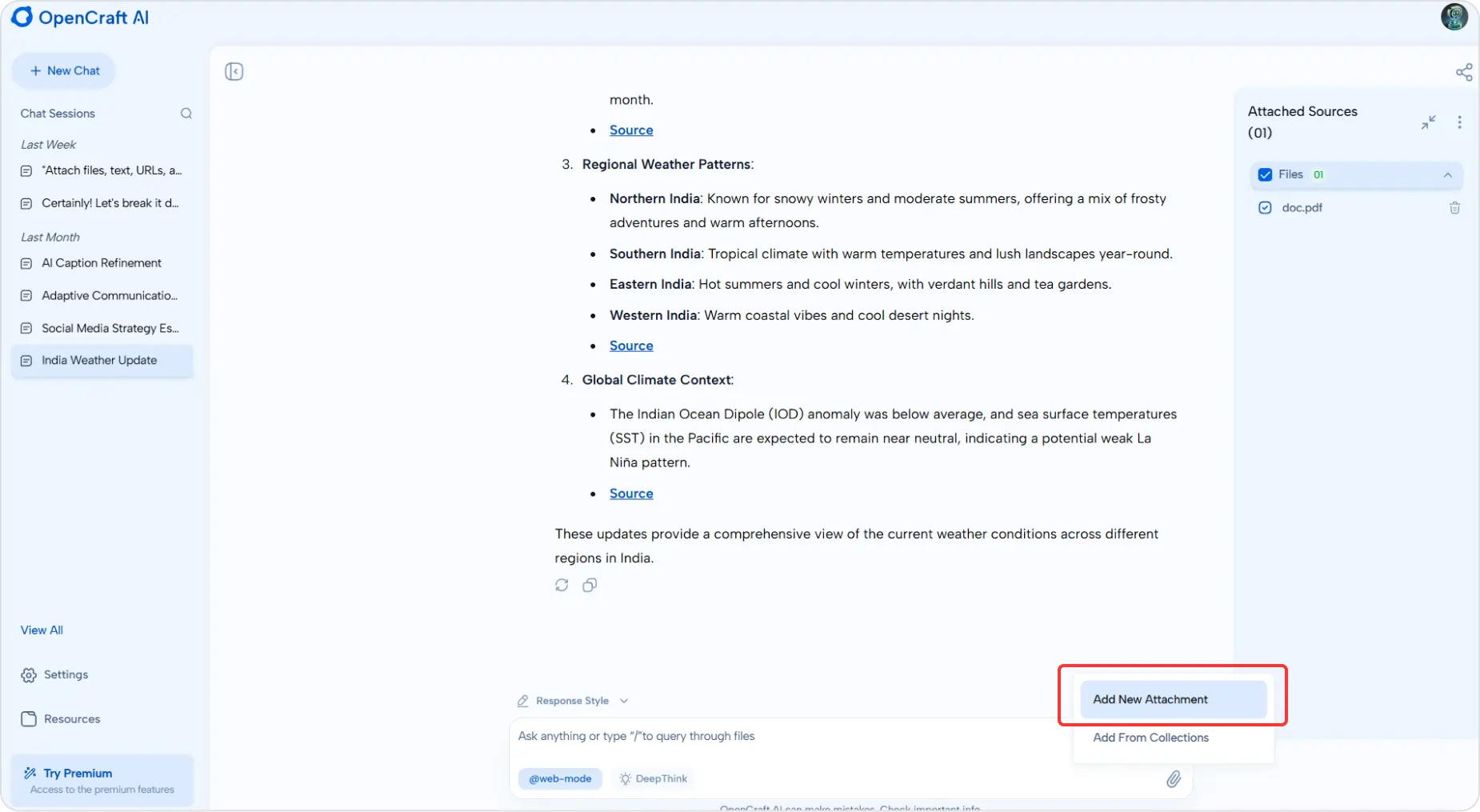
- First, locate the attachment icon (paperclip) inside the main query box.
- Click on "Add New Attachment" to open the source selection menu and begin adding your documents and files.
2. Uploading Files
- Select "Computer Files" as your file source to browse documents stored on your device.
- You can simply drag & drop your items into the window or click to browse and upload files manually.
- We support a broad array of file formats to ensure seamless AI document analysis. You can upload PDF files, DOC/DOCX documents, PPT/PPTX presentations, TXT, HTML, and EPUB files. Check Here for the complete list of supported types.
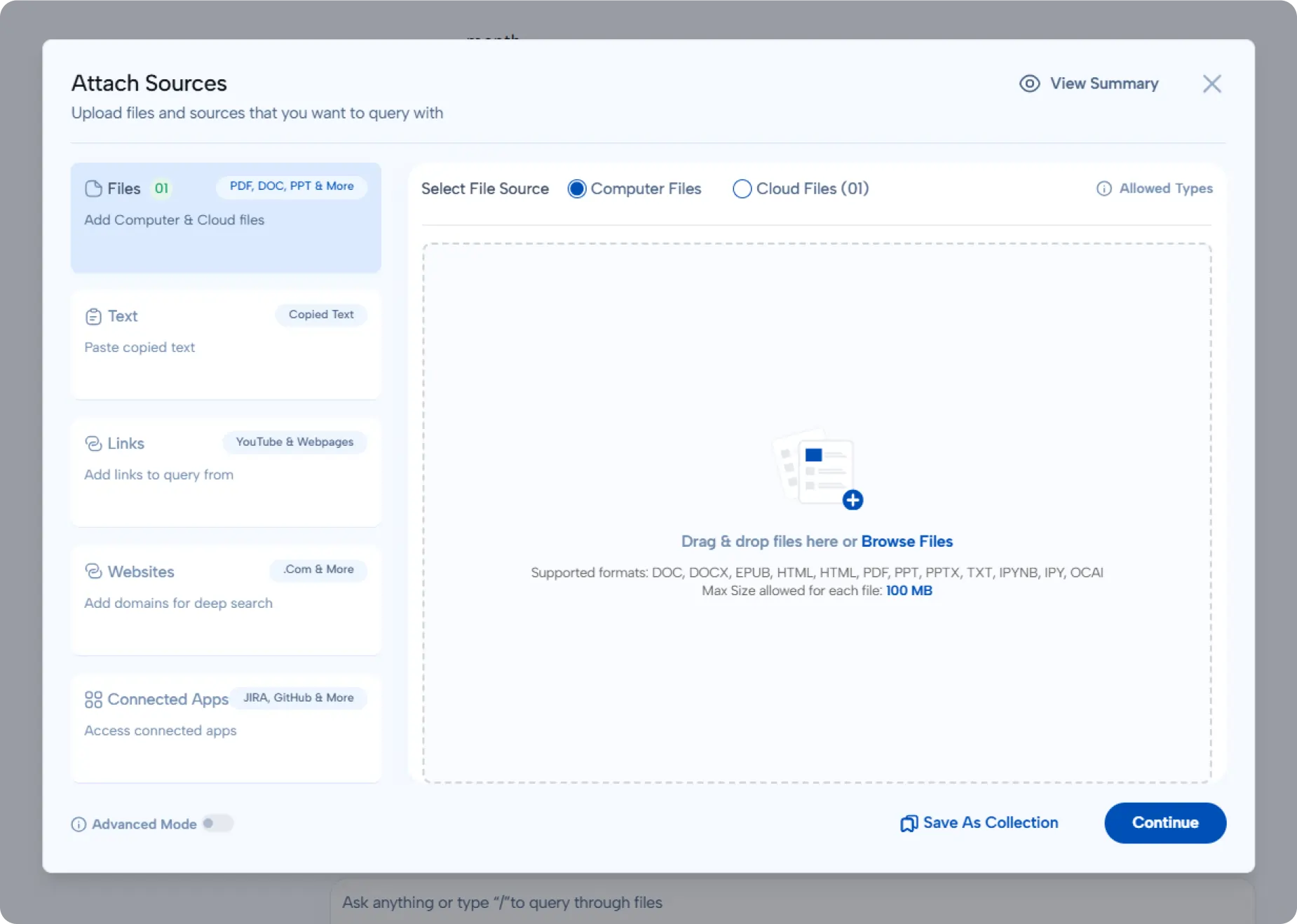
- Once your files for documents are uploaded, click "Continue." You can also choose to add more sources if you need to expand the context for your AI chat.