> Source Attachment
Overview
The Attach Sources feature is the bridge between your data and our AI. It allows you to build a custom knowledge base on the fly by uploading documents, pasting text, linking websites, or integrating third-party apps. By grounding the AI in your specific materials, you ensure that every answer is accurate, relevant, and context-aware.
How to Attach Sources
1. Open the Menu
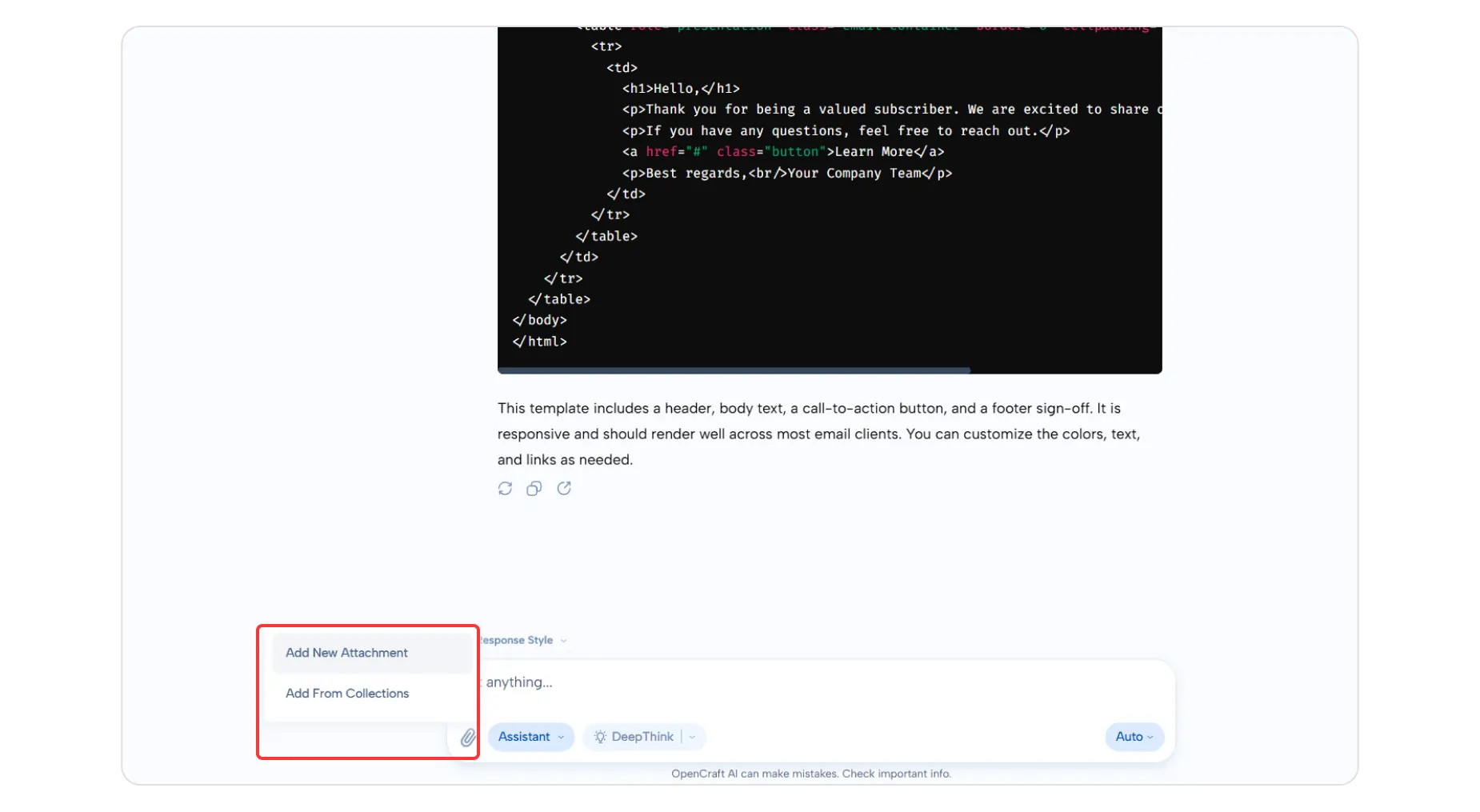
Start by clicking the attachment icon (paperclip) located in your query box. This will reveal two primary paths:
- Add New Attachment: Upload fresh content from your device or apps.
- Add From Collections: Quickly select a pre-made group of files. (Learn how to Make a Collection).
2. Choose Your Source Type
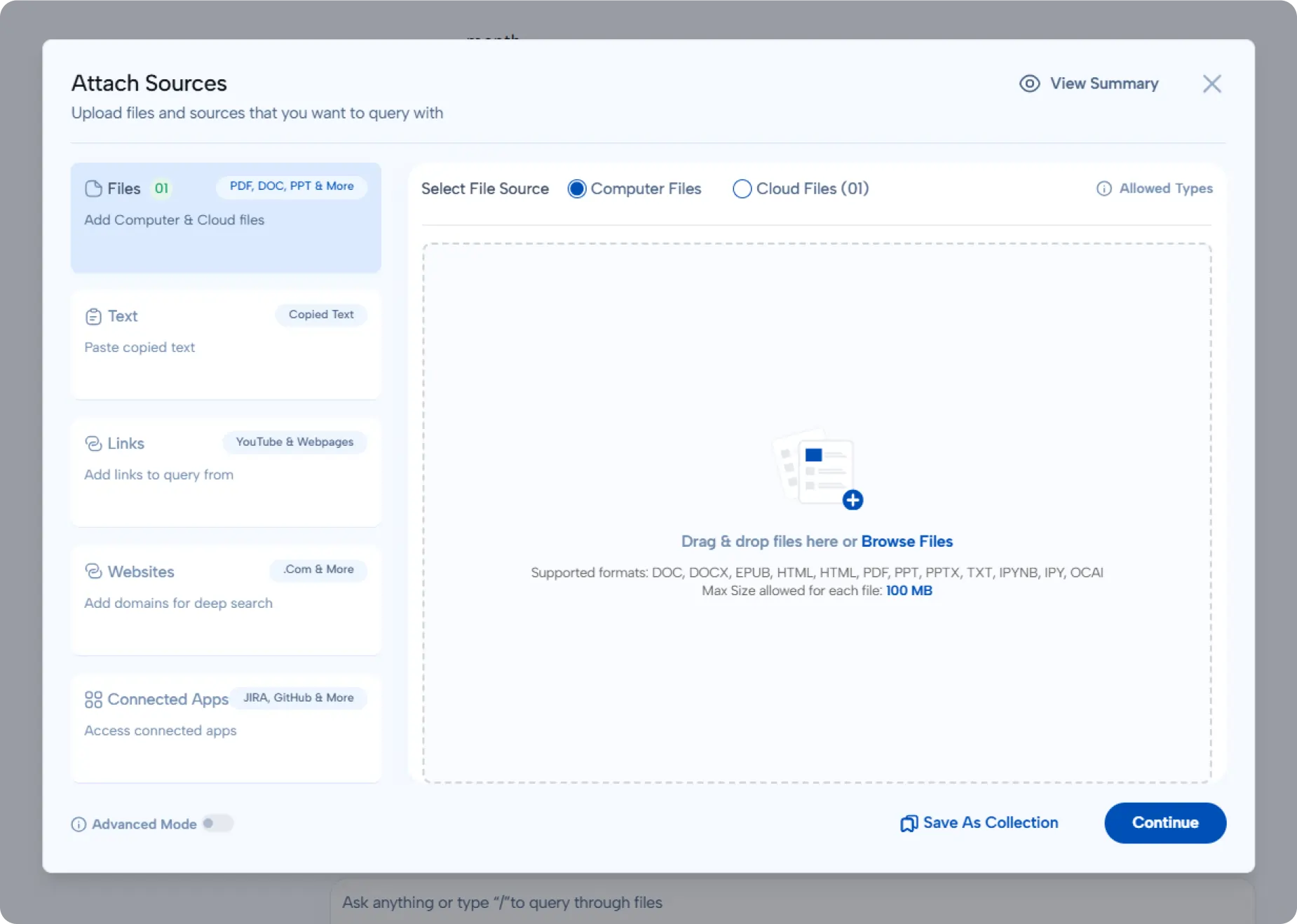
If you select "Add New Attachment," you have a wide array of options to suit your needs:
- Computer Files: Upload directly from your device. We support all major formats including PDF, DOCX, PPTX, HTML, and TXT.
- Cloud Files: Pull files directly from your connected cloud storage without downloading them first.
- Text Source: Have a quick note or snippet? Paste raw text directly into the AI for immediate analysis.
- Links: Paste URLs for webpages or YouTube videos to let the AI analyze online content.
- Websites: Attach entire domains to perform deep searches across a specific site.
- Connected Apps: Sync data from your workflow tools like Jira, GitHub, and Google Drive.
3. Using Collections
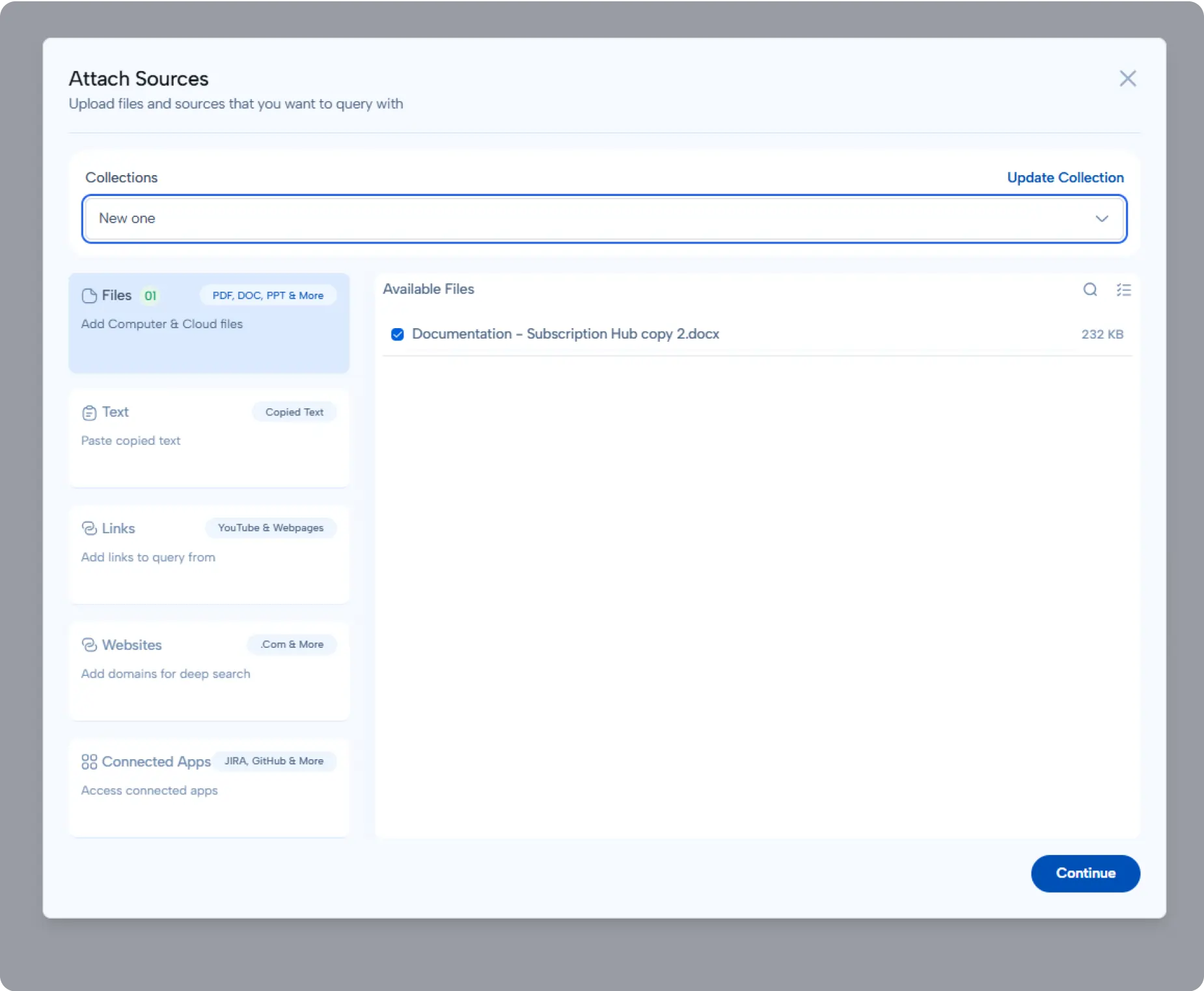
If you have already organized your files into Collections, you can save time by selecting them here:
- Choose a collection name from the dropdown menu.
- Select specific files within that collection or add the whole set.
- Click "Continue" to attach them to your current chat session.
- Tip: You can also click "Update Collection" here to add new files to an existing group on the fly.
4. Managing Active Sources
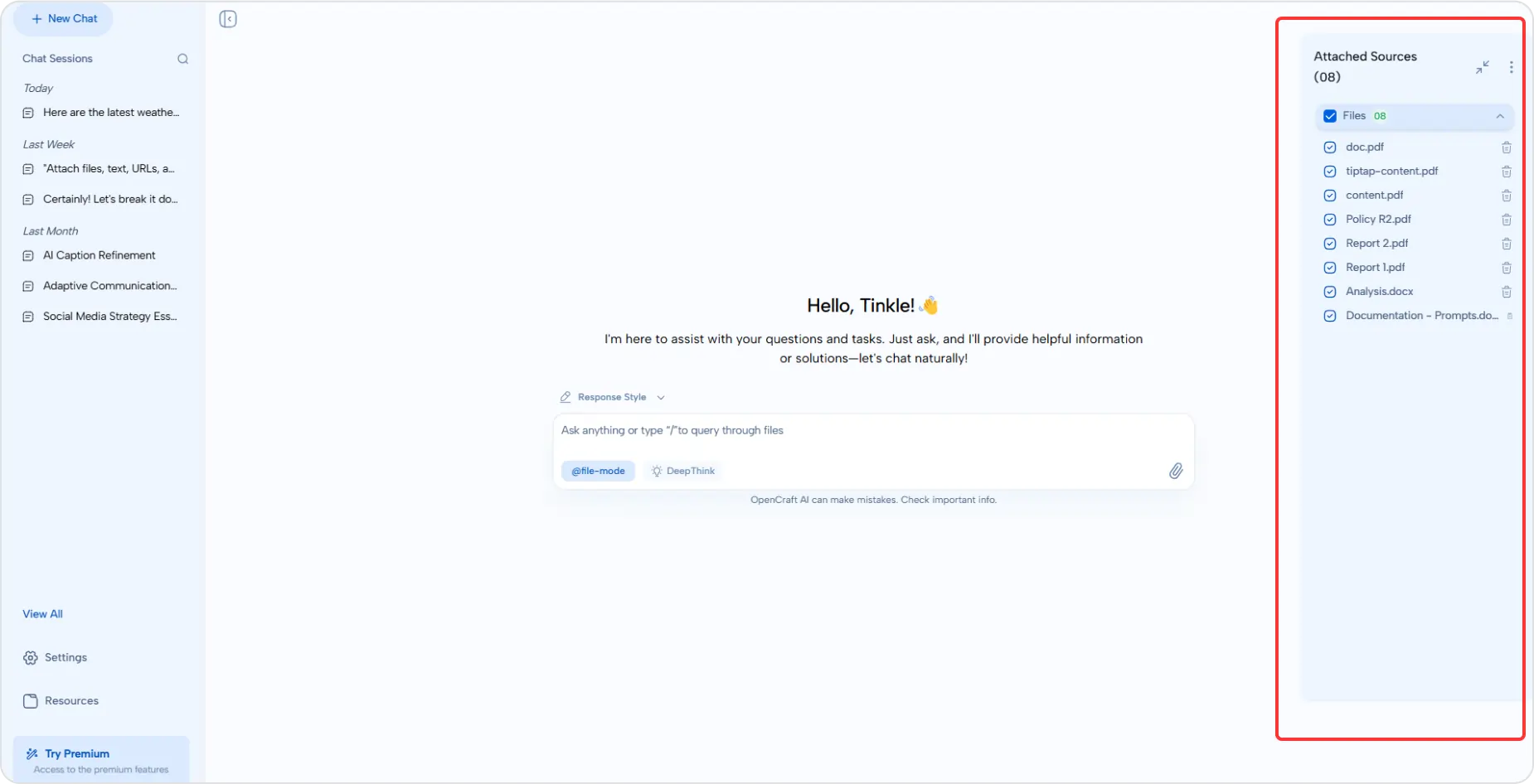
Once attached, your sources appear in the Attached Sources panel. Here you have full control:
- Toggle Visibility: You can "Disable" a file without deleting it. This tells the AI to ignore that specific file for the next query, giving you granular control over the context.
- Remove: Permanently remove files that are no longer needed for the conversation.
Why Attach Sources?
- Eliminate Hallucinations: By forcing the AI to use your data, you get factual answers based on your documents, not general internet knowledge.
- Streamline Research: Stop switching tabs. Bring your PDFs, Jira tickets, and web links into one interface and query them all at once.